

Looking to make an original character voice instead? See Voice
Design.
Before you begin
- Sign in at fish.audio/app.
- A PVC slot. Professional Voice Clone uses a limited number of slots tied to your plan; the hub shows how many you have used.
- Time. Training alone takes 10–30 minutes, so set aside time for the full flow.
Open Professional Voice Clone
Go to fish.audio/app/create-voice and choose Professional Voice Clone. You are asked to confirm — note that a Professional Voice Clone job cannot be deleted once created, so start one only when you are ready. Fish Audio then creates the clone and opens its workspace. (If you have used all your slots, you are sent to billing instead.)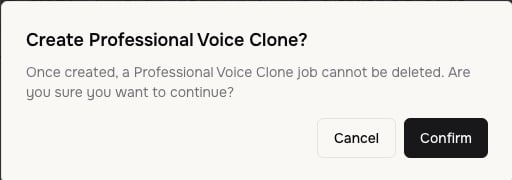
Create the clone
1
Upload your audio
Under Upload your audio files, add recordings of the voice you are cloning.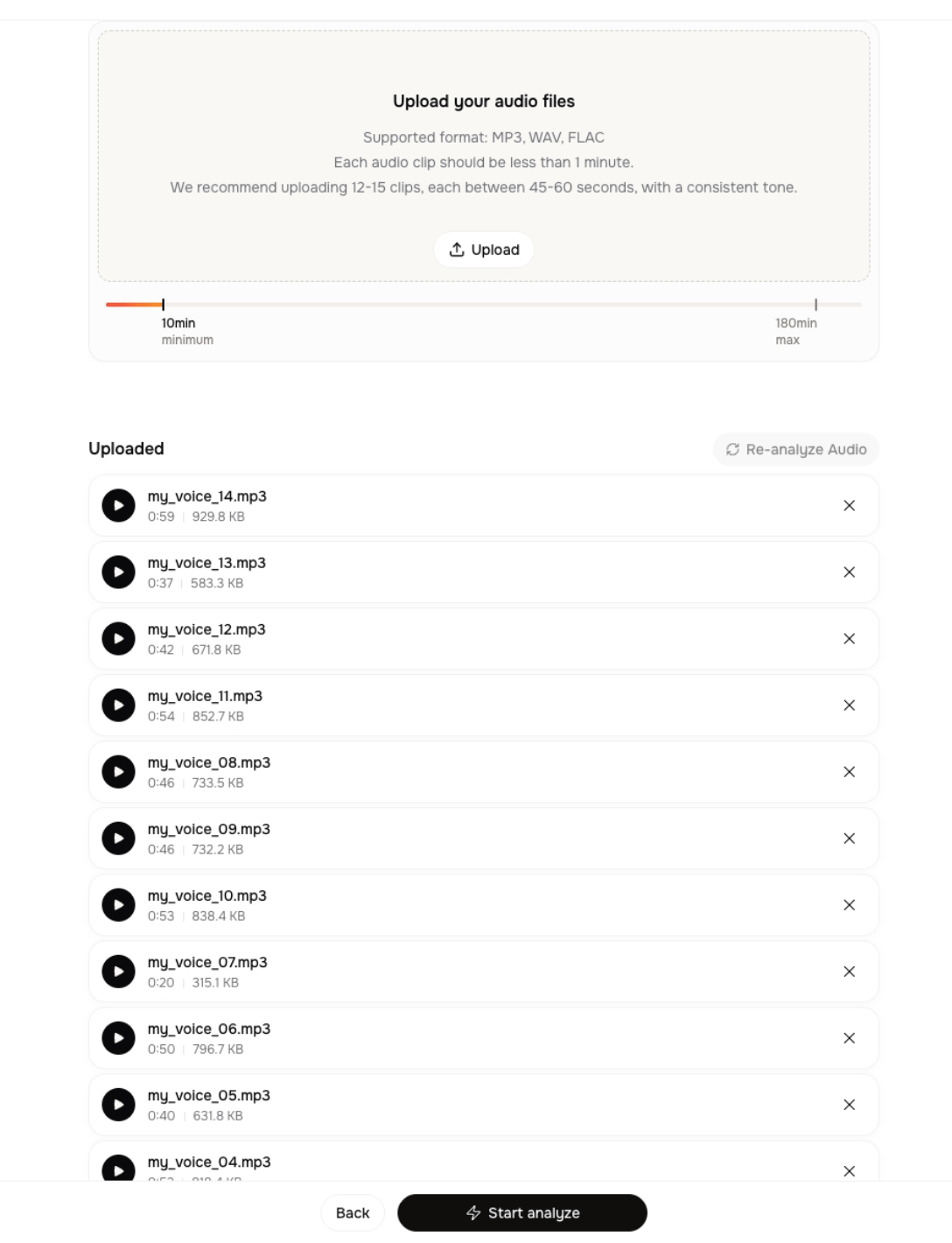
- Formats: MP3, WAV, FLAC (other common audio and video files are also accepted).
- Each clip: less than 1 minute.
- Recommended: 12–15 clips, each 45–60 seconds, with a consistent tone.
- Total: at least 10 minutes; the timeline shows your progress toward the minimum (up to a 180-minute maximum).
2
Analyze
When you have at least 10 minutes of usable audio, click Start analyze (at the bottom
of the upload page shown above). Fish Audio checks each clip’s quality and language.
3
Verify it is your voice
In Verify Voice Ownership, choose the prompt language, click Record, and read
the on-screen text aloud (keep it under about 30 seconds). Submit the recording — Fish
Audio compares your voice to the uploaded clips.If verification fails, you will see a reason such as “The words you read didn’t match the
prompt.” or “Your voice didn’t match the uploaded audio.” Try again in a quiet room,
reading the prompt exactly.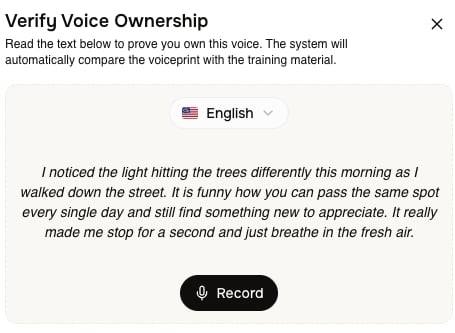
4
Wait for training
After verification, training starts. You will see Preparing training materials… Training
typically takes 10 to 30 minutes, and Fish Audio emails you when it is done. The page
updates itself, so you can leave and come back.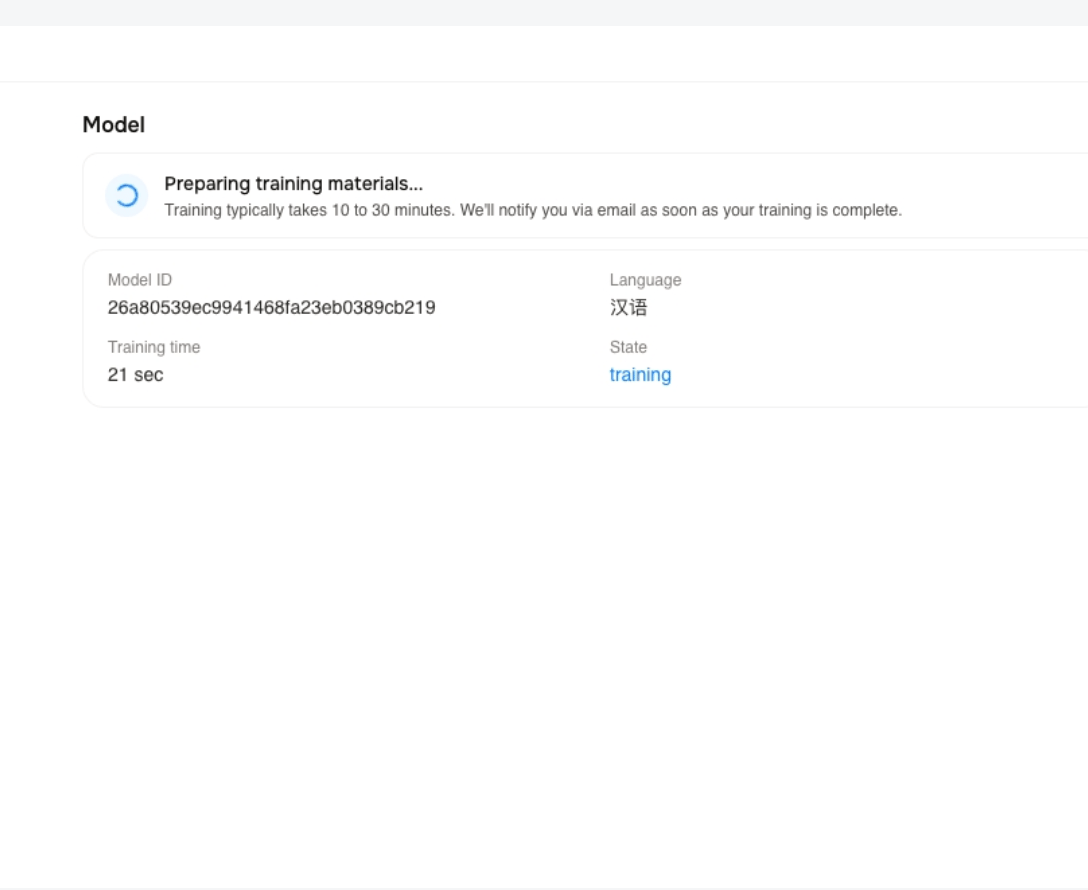
5
Preview the voice
When training finishes, the Preview section offers ready-made samples — click play to
listen. To test your own words, click Custom preview text, type a sentence, and click
Generate Preview.Screenshot: the preview samples and the custom preview input.
6
Name and release
Click Continue to Release to open the release form. Enter a Voice Name (required),
adjust the optional details and Type (Public, Unlisted, or Private), then tick
the confirmation box (“I confirm I have permission to create and share this voice
model.”) and click Create Voice. Your professional voice is published and you land on
its model page.Screenshot: the release form with the confirmation box.
Resume a clone in progress
Because PVC takes a while, the Create Voice hub lists your clones in progress below the method cards:- Draft → Continue — resume an unfinished clone (still uploading or awaiting verification).
- Awaiting Release → Release — finish a trained clone that is ready to publish.
- Trained → View — open a clone that is already done.
- Training in progress — clones that are still verifying or training show a spinner and update automatically.
- Verification Failed — verification did not pass; there is no further action here. See Troubleshooting below.
Troubleshooting
You've reached the limits of your current plan
You've reached the limits of your current plan
You are out of Professional Voice Clone slots. Upgrade your plan to get more slots.
A clip was rejected
A clip was rejected
Usually background noise, no clear speech, or multiple speakers. Re-record in a quiet room
with a single speaker and upload again.
Verification keeps failing
Verification keeps failing
Read the prompt word for word in the selected language, in a quiet room, using the same
voice as your uploaded clips. If verification cannot pass, the clone is marked
Verification Failed on the Create Voice hub, the model is locked and cannot be deleted,
and you will need to contact customer service for help.
You changed clips after analysis
You changed clips after analysis
Editing your audio clears the current analysis results. All clips reset and must be
analyzed again before you can continue — confirm when prompted.